Connecting Watchman to your WiFi
Watchman version 17
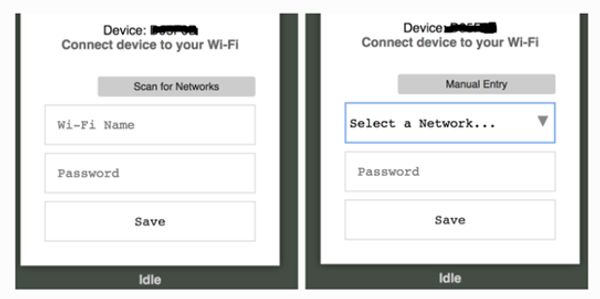
- Power ON your Watchman
- Wait for display to show “Offline, begin WiFi Setup now”
- Go to WiFi settings on your tablet/mobile/PC and connect to ppC_noInternet_…… network
- You should see configuration page as shown above. If not, then go to web browser (Chrome/Safari is preferred) and type 192.168.4.1 in URL field and hit enter. The page should show up.
- Input your WiFi password and click “Save”. If it errors, watchman will restart. Go back to step “2” to resume (some units may take you directly to step “3”. If so, then proceed from step “3” onward).
- As you see “Success” message – you are all set (Watchman will auto-restart in a minute).
Watchman version 15 or lower
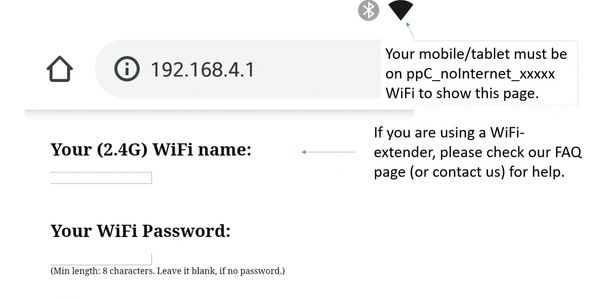
- Power ON your Watchman
- Go to WiFi settings on your tablet/mobile/PC and connect to ppC_noInternet_…… network
- Go to web browser (Chrome/Safari is preferred) and type 192.168.4.1 in URL field and hit enter. The displayed page will show up. If the displayed page does NOT show up, please check if your tablet/mobile is still connected with ppC_noInternet_….. SSID (you might need to “Forget” your WiFi network)
- Input SSID (i.e. your WiFi network name) and password (of your WiFi network) and press “Connect” (note: inputs are case sensitive). Wait for 10sec – please be patient with it.
- As you see “Success” message – you are all set (Watchman will auto-restart in a minute).
Watchman version 4.0.x
Watchman version 3.1.x
Watchman Setup Instructions (Video) – version 15 or lower
The 2nd part of the setup requires Internet access. Please ensure that your device (tablet/phone) is connected (back) to your location’s WiFi.
Need help? Please write to us
Please contact us at tech@pp-code.com for questions or queries